.jpg)
How do I manually update Printer drivers?
Printer drivers play an important role in helping your computer communicate with your printer. Every time you print a document, photo, or report, the printer driver translates your computer's instructions into a format the printer can understand. If the driver becomes outdated, damaged, or incompatible with your operating system, you may experience printing problems such as poor print quality, printer offline errors, connection failures, or print jobs getting stuck.
Although many computers update drivers automatically, there are times when you may need to manually update your printer driver. A manual update can improve printer performance, fix software bugs, increase compatibility with the latest operating system updates, and resolve communication issues between your computer and printer.
Why Should You Manually Update Printer Drivers?
Printer drivers receive updates that improve performance, stability, and compatibility.
Installing the latest driver helps your computer communicate more efficiently with your printer.
Driver updates can also fix known software issues and improve printing reliability.
Check Your Printer Model
-
Before updating the driver, confirm your printer model.
-
Installing the correct driver is important because different printer models require different software.
-
Using the wrong driver may prevent the printer from working correctly.
Identify Your Operating System
-
Make sure you know which operating system your computer is using.
-
The printer driver must match your operating system to install correctly.
-
Using an incompatible driver may cause installation errors.
Remove the Old Printer Driver
-
If your current printer driver is damaged or outdated, remove it before installing the new version.
-
Restart your computer after removing the driver.
-
This helps prevent conflicts during installation.
Download the Correct Printer Driver
-
Obtain the latest driver designed for your specific printer model and operating system.
-
Using the most recent version improves compatibility and overall performance.
-
Save the installation file to an easy-to-find location on your computer.
Install the Updated Driver
-
Run the driver installation and follow the on-screen instructions.
-
Complete the installation without interrupting the process.
-
If prompted, restart your computer after the installation finishes.
Reconnect Your Printer
-
After updating the driver, reconnect your printer if necessary.
-
For USB printers, ensure the cable is securely connected.
-
For wireless printers, verify that the printer is connected to the same Wi-Fi network as your computer.
-
A stable connection helps ensure successful communication.
Set the Printer as the Default Printer
-
Open your printer settings and confirm that the correct printer is selected as the default printer.
-
This ensures that future print jobs are sent to the correct device.
Print a Test Page
-
After installing the updated driver, print a test page.
-
A successful test confirms that the driver has been installed correctly and the printer is communicating with your computer.
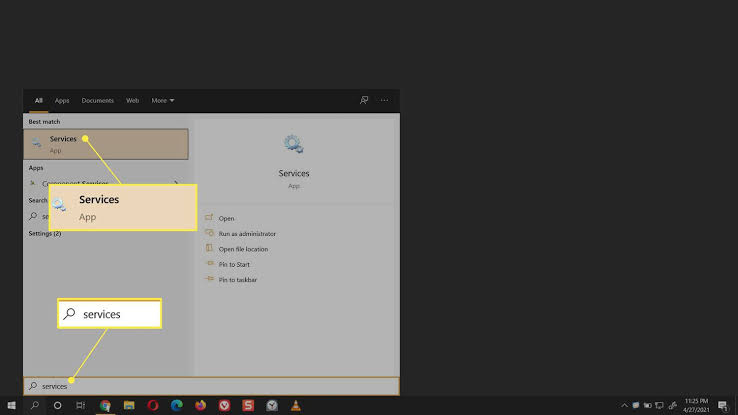
Restart the Print Spooler Service
-
If printing problems continue after updating the driver, restart the Print Spooler service.
-
This refreshes the printing system and may resolve communication issues.
Install Operating System Updates
-
Keeping your operating system updated helps improve compatibility with printer drivers.
-
Install any available updates and restart your computer if necessary.
-
Updated software helps reduce printing problems.
Common Reasons Printer Drivers Need Updating
Several situations may require a manual printer driver update.
Common reasons include:
-
Outdated printer driver.
-
Printer not responding.
-
Printer offline errors.
-
Poor print quality.
-
Print jobs stuck in the queue.
-
Operating system updates.
-
Driver compatibility issues.
-
Communication problems.
-
Installation errors.
-
Software conflicts.
-
Printer detection problems.
-
Slow printing performance.
Recognizing these signs helps you know when a driver update may be needed.
Tips to Keep Printer Drivers Updated
Regular maintenance helps improve printer reliability.
-
Check for driver updates regularly.
-
Keep your operating system updated.
-
Remove unused printer drivers.
-
Restart your computer after installing updates.
-
Maintain a stable printer connection.
-
Print a test page after updating.
-
Verify printer settings periodically.
-
Avoid interrupting the installation process.
These simple habits help reduce future driver problems.
FAQs
Why should I manually update my printer driver?
Manual updates improve compatibility, fix software bugs, enhance printer performance, and resolve many common printing issues.
How do I know if my printer driver is outdated?
Common signs include printer offline errors, slow printing, communication problems, poor print quality, and print jobs getting stuck.
Should I remove the old printer driver first?
Yes. Removing outdated or damaged drivers helps prevent software conflicts during installation.
Can an outdated printer driver stop my printer from working?
Yes. An outdated or incompatible driver can prevent your computer from communicating properly with the printer.
Why should I print a test page after updating the driver?
A test page confirms that the updated driver has been installed correctly and the printer is working as expected.
When should I get printer help?
Additional printer help may be useful if your printer continues having driver-related problems after completing the recommended troubleshooting steps.
Conclusion
Manually updating printer drivers is an effective way to improve printer performance and resolve common printing issues. Outdated or damaged drivers can cause communication problems, printer offline errors, slow printing, and installation failures.
By identifying your printer model, installing the correct driver, removing outdated software, reconnecting the printer, printing a test page, and keeping your operating system updated, you can ensure reliable communication between your computer and printer.
.jpg)