How to install printer drivers step by step?
A printer driver is an essential piece of software that allows your computer and printer to communicate with each other. Without the correct driver, your computer may not recognize the printer, print jobs may fail, or important printer features may not work as expected. Whether you have purchased a new printer or need to reinstall the driver after changing computers, installing the correct printer driver is one of the first steps toward reliable printing.
Why Is a Printer Driver Important?
A printer driver acts as the communication bridge between your computer and your printer.
A properly installed driver allows you to:
-
Print documents successfully
-
Access printer settings
-
Use advanced printing features
-
Improve print quality
-
Maintain reliable communication
-
Reduce printing errors
-
Enable scanning functions on compatible printers
-
Keep the printer operating efficiently
Installing the correct driver ensures your printer performs as intended.
Prepare Before Installing the Driver
Before starting the installation process, make sure everything is ready.
You should:
-
Turn on the printer.
-
Ensure the printer is in a ready state.
-
Check that your computer is working normally.
-
Have a stable internet connection if needed.
-
Disconnect unnecessary printer cables unless instructed otherwise.
-
Close unnecessary programs running on your computer.
Proper preparation helps the installation proceed smoothly.
Identify Your Printer Model
-
Before installing the driver, confirm the exact printer model.
-
Installing a driver designed for a different printer may cause compatibility problems or prevent the printer from working correctly.
-
Carefully check the printer label or product information to ensure accuracy.
Remove Previous Printer Drivers
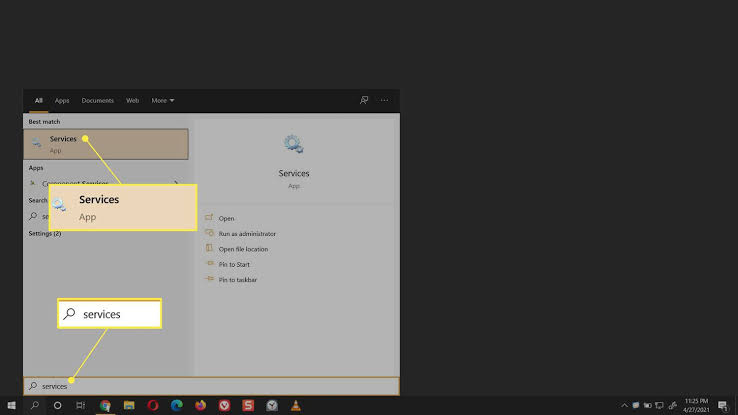
If your computer previously used the same printer or another printer from the same manufacturer, outdated drivers may interfere with the new installation.
Removing unused printer drivers helps prevent software conflicts.
Restart your computer after removing outdated drivers if necessary.
Download the Appropriate Driver
-
Choose the driver that matches both your printer model and your computer's operating system.
-
Using the correct version helps ensure full compatibility and reliable printer performance.
-
Avoid installing drivers that are not intended for your specific printer.
Begin the Installation Process
Open the downloaded driver file and follow the installation instructions carefully.
During the installation, you may be asked to:
-
Accept the software agreement.
-
Choose an installation type.
-
Select your printer model.
-
Confirm installation preferences.
-
Read each step carefully before proceeding.
Connect the Printer
Depending on your printer model, you may be asked to connect the printer during the installation process.
This connection may be established through:
-
A wireless network
-
A cable connection
Wait until the installation requests the connection before connecting the printer if instructed to do so.
Complete the Installation
-
Continue following the on-screen instructions until the installation is complete.
-
Once finished, restart your computer if prompted.
-
Restarting helps the operating system recognize the newly installed printer driver.
Print a Test Page
After installation, print a test page to verify that everything is working correctly.
A successful test page confirms that:
-
The driver installed correctly.
-
The computer communicates with the printer.
-
The printer is ready for regular use.
Testing immediately helps identify any remaining issues.
Check Printer Settings
Open your printer settings and confirm that your printer appears correctly.
Review available options such as:
-
Paper size
-
Print quality
-
Default printer selection
-
Paper source
-
Color preferences
Proper settings improve printing results.
Update the Printer Driver
-
Manufacturers occasionally release updated drivers that improve compatibility and performance.
-
Keeping your printer driver updated helps reduce printing problems and enhances stability.
Review available updates periodically.
Restart the Printer
-
After completing the installation, restart the printer.
-
This refreshes the printer's internal system and ensures the new driver communicates properly with the device.
Test Different Print Jobs
Print several different types of documents to confirm the installation.
Try printing:
-
Text documents
-
Images
-
Reports
-
Multi-page files
Testing different print jobs helps verify that the printer functions correctly under normal use.
Troubleshoot Installation Problems
If the driver does not install successfully, consider checking:
-
Printer power status
-
Connection type
-
Operating system compatibility
-
Driver version
-
Computer restart status
-
Printer readiness
Many installation problems are resolved through careful review of these basic items.
Tips for Successful Printer Driver Installation
Following a few simple practices helps ensure a smooth installation.
Use the Correct Driver
Always choose the driver designed for your printer model and operating system.
Keep Your Operating System Updated
An updated operating system improves hardware compatibility.
Restart Devices After Installation
Restarting both the printer and computer refreshes communication.
Review Printer Settings
Verify that the printer is selected correctly before printing.
Print a Test Page
Testing confirms successful installation.
Keep Drivers Updated
Regular driver updates improve performance and reliability.
Common Mistakes to Avoid
Avoid these common installation mistakes:
-
Installing the wrong printer driver
-
Connecting the printer too early if instructions specify otherwise
-
Ignoring operating system compatibility
-
Skipping the computer restart
-
Forgetting to print a test page
-
Leaving outdated drivers installed
-
Selecting incorrect printer settings
-
Interrupting the installation process
FAQs
Why do I need a printer driver?
A printer driver enables communication between your computer and the printer, allowing print jobs to be processed correctly and printer features to function properly.
Should I remove old printer drivers before installing a new one?
Yes. Removing outdated or unused printer drivers helps prevent software conflicts and improves compatibility with the new installation.
Why should I print a test page after installing the driver?
A test page confirms that the driver has been installed successfully and that the printer is communicating properly with your computer.
Can an outdated printer driver cause printing problems?
Yes. Older drivers may lead to compatibility issues, communication failures, missing printer features, or printing errors.
How can I keep my printer working properly after installing the driver?
Keep the driver updated, review printer settings periodically, restart your devices when needed, use the correct paper, and perform routine printer maintenance to maintain reliable printing performance.
Conclusion
Installing a printer driver is an essential step in preparing your printer for reliable everyday use. A correctly installed driver allows your computer and printer to communicate efficiently while providing access to important printing features and settings.
.jpg)