How to fix Printer Driver Installation Issues?
A printer driver is essential for allowing your computer and printer to communicate with each other. Without the correct driver, your printer may not be recognized by the computer, print jobs may fail, or the printer may not work at all. Whether you use an HP, Canon, Epson, Brother, Dell, Lexmark, or another printer brand, driver installation problems are among the most common issues users experience.
Printer driver installation issues can occur for many reasons. An outdated operating system, incompatible drivers, damaged installation files, software conflicts, or connection problems can interrupt the installation process. In some cases, the installation may stop before it finishes, display an error message, or complete successfully but fail to detect the printer.
Fortunately, most printer driver installation problems can be fixed with simple troubleshooting. Restarting your computer, removing old drivers, checking compatibility, and installing the correct driver often solve the problem without requiring advanced technical knowledge.
Why Does a Printer Driver Fail to Install?
The printer driver acts as a bridge between your computer and the printer.
If the driver is damaged, outdated, or incompatible with your operating system, the installation may fail.
Software conflicts, interrupted installations, or communication problems can also prevent the driver from installing properly.
Understanding the cause helps you choose the right solution.
Restart Your Computer
-
Temporary software problems can interfere with driver installation.
-
Restart your computer before trying the installation again.
-
A fresh restart clears temporary system conflicts and may allow the installation to complete successfully.
Remove Old Printer Drivers
-
Older printer drivers may conflict with new installations.
-
Remove any unused or outdated printer drivers from your computer.
-
Restart your computer after removing them.
-
This helps prevent compatibility issues during installation.
Verify Operating System Compatibility
-
Make sure the printer driver matches your operating system.
-
Installing an incompatible driver can lead to installation errors or prevent the printer from working correctly.
-
Always choose the correct driver version for your computer.
Check the Printer Connection
-
If your printer uses a USB cable, ensure it is securely connected.
-
For wireless printers, confirm that the printer is connected to the same Wi-Fi network as your computer.
-
A stable connection helps the installation process detect the printer.
Temporarily Disable Security Software
-
Some antivirus or firewall programs may block printer driver installation.
-
If necessary, temporarily disable them while installing the driver.
-
Remember to enable your security software again after the installation is complete.
Update Your Operating System
-
An outdated operating system may not fully support newer printer drivers.
-
Check for available system updates and install them.
-
Restart your computer after updating.
-
Updated systems improve compatibility with printer software.
Install the Driver Again
-
After completing the previous troubleshooting steps, begin the installation again.
-
Follow the setup instructions carefully.
-
Avoid disconnecting the printer or shutting down your computer until the installation finishes.
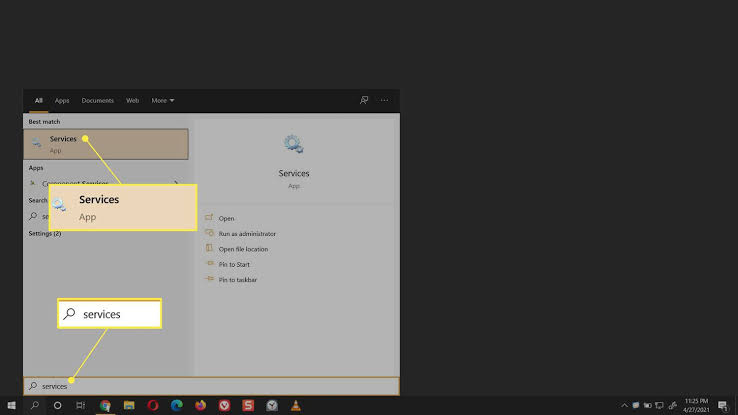
Restart the Print Spooler Service
-
The Print Spooler manages communication between your computer and the printer.
-
If this service is not working correctly, the printer driver may not install or function properly.
-
Restarting the Print Spooler can resolve many installation-related issues.
Reinstall the Printer
-
If the driver installs but the printer is still not detected, remove the printer from your computer.
-
Restart both the printer and computer.
-
Add the printer again using the normal setup process.
-
This often resolves communication problems.
Print a Test Page
-
Once the installation is complete, print a test page.
-
A successful test confirms that the printer driver has been installed correctly and the printer is communicating with your computer.
Common Reasons Printer Driver Installation Fails
Several issues can prevent a printer driver from installing successfully.
Common causes include:
-
Incorrect printer driver.
-
Outdated operating system.
-
Damaged installation files.
-
Existing driver conflicts.
-
Weak wireless connection.
-
Loose USB cable.
-
Temporary software conflicts.
-
Antivirus software interference.
-
Firewall restrictions.
-
Printer detection problems.
-
Operating system compatibility issues.
-
Interrupted installation process.
Reviewing these possibilities helps identify the issue more quickly.
Tips to Prevent Printer Driver Installation Problems
Good maintenance habits help ensure successful driver installations.
-
Keep your operating system updated.
-
Remove unused printer drivers.
-
Install the correct driver for your printer model.
-
Maintain a stable internet connection.
-
Verify the printer connection before installation.
-
Restart your computer before installing a new driver.
-
Avoid interrupting the installation process.
-
Print a test page after installation.
These simple habits help reduce future installation problems.
FAQs
Why is my printer driver not installing?
This is commonly caused by incompatible drivers, outdated operating systems, damaged installation files, software conflicts, or connection problems.
Should I remove old printer drivers before installing a new one?
Yes. Removing outdated or unused drivers helps prevent installation conflicts and improves compatibility.
Can antivirus software block printer driver installation?
Yes. Some antivirus or firewall programs may interfere with the installation process. Temporarily disabling them during installation may help, provided they are enabled again afterward.
Why should I update my operating system?
Operating system updates improve compatibility, security, and support for newer printer drivers.
How do I know if the driver installed correctly?
Printing a test page is the easiest way to confirm that the driver has been installed successfully and the printer is working properly.
When should I get printer help?
Additional printer help may be useful if the printer driver continues failing to install after completing the recommended troubleshooting steps.
Conclusion
Printer driver installation issues are usually caused by incompatible drivers, outdated operating systems, damaged installation files, software conflicts, or connection problems. Fortunately, most of these issues can be resolved with simple troubleshooting.
Restarting your computer, removing old printer drivers, checking operating system compatibility, verifying the printer connection, restarting the Print Spooler service, and installing the correct driver can solve many installation problems.
.jpg)