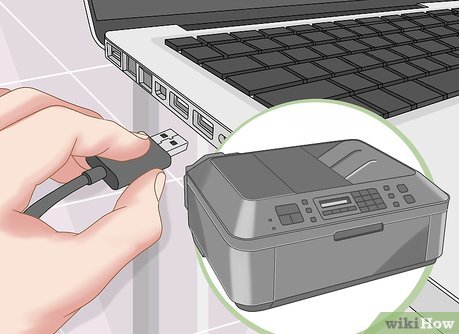
How to set up one printer to multiple computers?
Using one printer with multiple computers is a convenient and cost-effective solution for homes, small businesses, and shared workspaces. Instead of buying a separate printer for every computer, you can connect multiple devices to a single printer and allow everyone on the same network to print whenever needed.
Modern printers make this process much easier than before. Most wireless printers support network printing, allowing desktops, laptops, and even mobile devices to send print jobs without using extra cables. Even USB printers can often be shared through a computer that stays connected to the printer.
Although the setup is usually straightforward, some users experience problems such as the printer not appearing on other computers, failed print jobs, connection errors, or offline messages. These issues are commonly caused by incorrect network settings, outdated printer drivers, or temporary software conflicts.
Choose the Right Printer Connection
-
Before sharing the printer, decide how it will be connected.
-
A wireless printer is the easiest option because it connects directly to your Wi-Fi network.
-
A USB printer can also be shared, but it usually needs to remain connected to one computer that is turned on when others need to print.
-
Choosing the right connection method makes setup much easier.
Connect the Printer to Your Network
-
If you are using a wireless printer, connect it to your Wi-Fi network.
-
Open the printer's wireless settings.
-
Select your network and enter the correct password.
-
Wait until the printer confirms that it is connected successfully.
-
A stable network connection is essential for reliable printing.
Connect Every Computer to the Same Network
-
All computers that will use the printer must be connected to the same network.
-
If one computer is connected to a different network, it may not detect the printer.
-
Verify the network connection before adding the printer.
Install the Correct Printer Driver
-
Each computer needs a compatible printer driver.
-
Install the latest driver that matches the printer model and the operating system on every computer.
-
Updated drivers improve compatibility and reduce printing problems.
Add the Printer on Each Computer
-
Open the printer settings on each computer.
-
Search for available printers.
-
Select the shared printer from the list.
-
Complete the installation and confirm that the printer appears in the list of installed devices.
Set the Printer as the Default Printer
-
If this will be the main printer used on a computer, set it as the default printer.
-
This ensures future print jobs are automatically sent to the correct printer.
Print a Test Page from Every Computer
-
After setup is complete, print a test page from each computer.
-
Successful test prints confirm that every device can communicate with the printer correctly.
Restart the Printer and Computers
-
If one of the computers cannot find the printer, restart the printer and the affected computer.
-
A restart refreshes the network connection and often resolves temporary communication problems.
Keep the Printer Driver Updated
-
Outdated printer drivers may cause printing errors or connection issues.
-
Check for updated drivers regularly on every computer connected to the printer.
-
Keeping the software current helps maintain reliable performance.
Check Printer Sharing Settings
-
If you are sharing a USB printer through another computer, make sure printer sharing is enabled.
-
Also ensure the host computer remains powered on while other computers need access to the printer.
-
Correct sharing settings allow all connected devices to print successfully.
Common Reasons a Shared Printer Does Not Work
Several issues can prevent multiple computers from using the same printer.
Common causes include:
-
Printer connected to a different network.
-
Incorrect printer driver.
-
Outdated printer software.
-
Weak Wi-Fi connection.
-
Printer sharing disabled.
-
Firewall restrictions.
-
Temporary software conflicts.
-
Printer offline status.
-
Print queue problems.
-
Incorrect printer settings.
-
Network communication issues.
-
Interrupted printer installation.
Understanding these causes makes troubleshooting much easier.
Tips for Reliable Printer Sharing
Good maintenance helps keep shared printing running smoothly.
-
Keep the printer connected to a stable network.
-
Install updated printer drivers on every computer.
-
Keep your operating systems updated.
-
Restart the printer occasionally.
-
Clear stuck print jobs regularly.
-
Verify network settings after changing your router.
-
Print a test page after making changes.
-
Check printer sharing settings regularly.
These simple habits help reduce future printing problems.
FAQs
Can one printer be connected to multiple computers?
Yes. A wireless printer can be connected to multiple computers on the same network. A USB printer can also be shared through a host computer.
Do all computers need a printer driver?
Yes. Every computer that uses the printer should have the correct printer driver installed for proper communication.
Why can't another computer find my printer?
This may happen because the computer is on a different network, printer sharing is disabled, or the printer driver is outdated.
Should every computer print a test page?
Yes. Printing a test page confirms that each computer is connected correctly and can communicate with the printer.
Can outdated printer drivers affect shared printing?
Yes. Old or incompatible drivers can cause connection errors, failed print jobs, and communication problems.
When should I get printer help?
Additional printer help may be useful if the shared printer continues having connection or communication problems after completing the recommended troubleshooting steps.
Conclusion
Setting up one printer for multiple computers is an excellent way to save money, reduce clutter, and improve productivity. Whether you use a wireless printer connected directly to your network or share a USB printer through a host computer, the setup process is simple when the correct steps are followed.
.jpg)