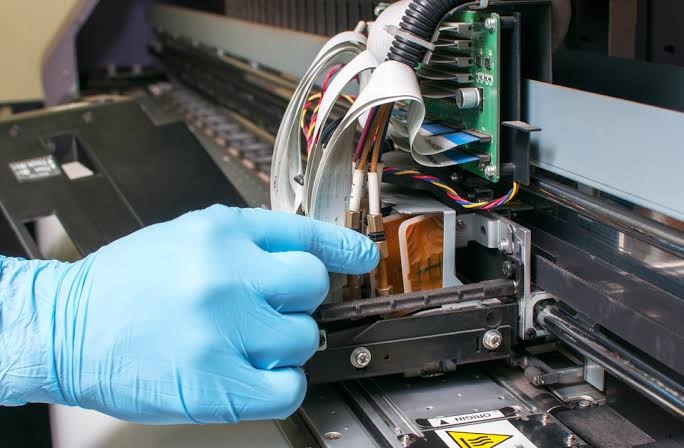
How to do printer maintenance on Windows 11?
Regular printer maintenance is one of the best ways to keep your printer working efficiently. Whether you use an inkjet or laser printer, routine maintenance can improve print quality, reduce paper jams, prevent communication errors, and extend the life of your printer. If you use Windows 11, the operating system includes several built-in tools that make printer management and maintenance easier.
Many common printer problems, such as faded prints, blank pages, paper feed issues, or offline errors, can often be prevented with regular cleaning and software updates. Ignoring routine maintenance may lead to clogged printheads, worn rollers, outdated drivers, and other issues that affect printer performance.
The good news is that maintaining your printer on Windows 11 does not require advanced technical knowledge. With a few simple steps, you can keep your printer running smoothly and reduce unexpected printing problems.
Why Is Printer Maintenance Important?
Your printer contains both hardware and software components that work together.
Over time, dust, paper particles, dried ink, outdated drivers, and software issues can reduce printing performance.
Routine maintenance helps improve reliability, print quality, and printer lifespan.
It also reduces the chances of unexpected errors.
Restart the Printer
-
Begin by restarting your printer.
-
Turn it off completely and disconnect the power cable for a short time.
-
Reconnect the power cable and turn the printer back on.
-
A restart clears temporary software issues and refreshes the printer's memory.
Restart Your Windows 11 Computer
-
Temporary operating system issues can affect printer performance.
-
Restart your Windows 11 computer before performing maintenance tasks.
-
This helps refresh communication between the computer and the printer.
Check Printer Status
-
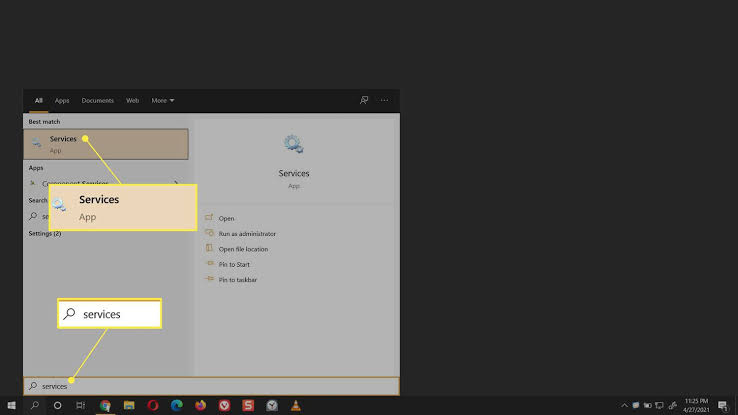
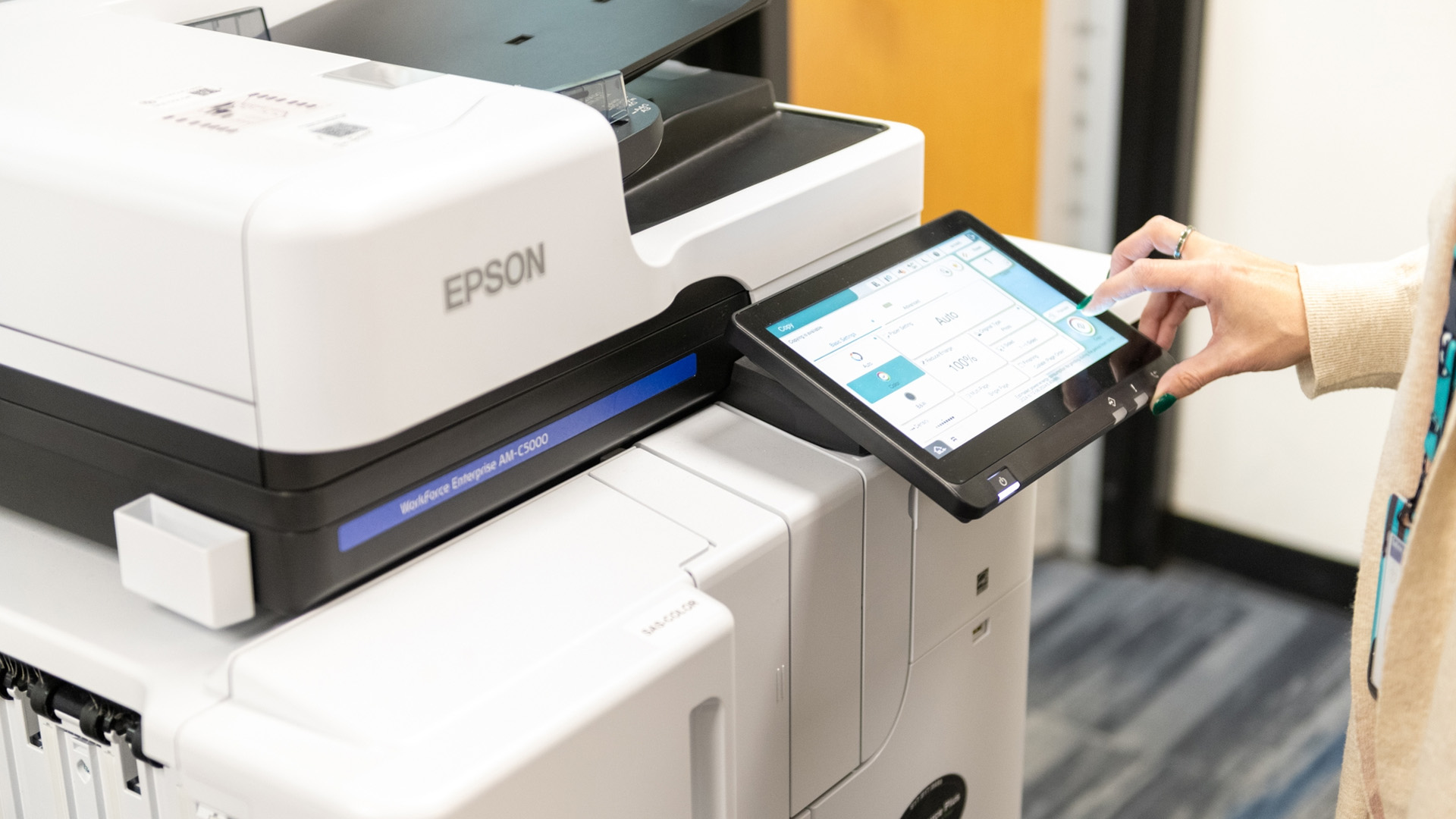
Open the printer settings in Windows 11.
-
Verify that your printer is online and set as the default printer.
-
Also make sure it is not paused or showing an offline status.
-
Correct settings improve printing reliability.
Update the Printer Driver
-
Printer drivers allow Windows 11 to communicate with your printer.
-
An outdated or damaged driver can cause printing problems.
-
Install the latest printer driver available for your printer model.
-
Restart your computer after updating the driver.
Clean the Printhead
-
If you have an inkjet printer, use the built-in printhead cleaning feature.
-
Cleaning removes dried ink that may affect print quality.
-
After cleaning, print a test page to verify the results.
-
Repeat the cleaning process if necessary.
Inspect Ink or Toner
-
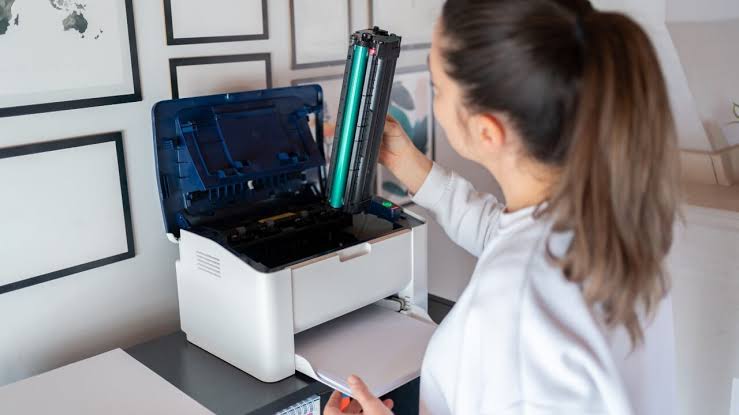
Check the condition of your ink cartridges or toner cartridge.
-
Replace empty or damaged supplies when needed.
-
Also ensure that cartridges are installed correctly.
-
Properly installed supplies improve print quality.
Clean the Paper Feed Rollers
-
Dust and paper debris can collect on the paper feed rollers.
-
Clean the rollers carefully according to your printer's maintenance instructions.
-
Clean rollers reduce paper jams and improve paper feeding.
Clear the Print Queue
-
A blocked print queue can interrupt printing.
-
Open the print queue in Windows 11.
-
Remove completed or stuck print jobs.
-
Restart the printer if necessary before printing again.
Check for Windows Updates
-
Windows 11 updates often include improvements for hardware compatibility.
-
Install available system updates.
-
Restart your computer after completing the updates.
-
Updated software helps improve printer performance.
Print a Test Page
-
After completing maintenance, print a test page.
-
Check the print quality and verify that the printer is working normally.
-
A successful test confirms that the maintenance process was effective.
Common Printer Problems Prevented by Maintenance
Regular maintenance helps reduce many common printer issues.
These include:
-
Paper jams.
-
Blank pages.
-
Faded printing.
-
Poor print quality.
-
Printer offline errors.
-
Communication errors.
-
Slow printing.
-
Print queue problems.
-
Driver-related issues.
-
Paper feeding problems.
-
Wi-Fi connection issues.
-
Temporary software conflicts.
Routine care helps prevent these problems before they become serious.
Tips to Keep Your Printer Working Well
Following good maintenance habits improves printer performance.
-
Clean the printer regularly.
-
Use high-quality paper.
-
Store ink and toner properly.
-
Update printer drivers.
-
Install Windows 11 updates.
-
Restart the printer occasionally.
-
Keep the print queue clear.
-
Print regularly to prevent ink from drying.
These simple habits help extend the life of your printer.
FAQs
Why is printer maintenance important?
Regular maintenance improves print quality, prevents common printer problems, and helps extend the life of your printer.
How often should I clean my printer?
Cleaning your printer regularly helps prevent dust buildup, clogged printheads, and paper feed issues.
Should I update my printer driver on Windows 11?
Yes. Updated printer drivers improve compatibility, communication, and overall printer performance.
Why should I clear the print queue?
A stuck print job can block new print requests and cause printing errors.
Can Windows updates improve printer performance?
Yes. Windows 11 updates often include improvements that enhance hardware compatibility and system stability.
When should I get printer help?
Additional printer help may be useful if your printer continues experiencing issues after completing the recommended maintenance steps.
Conclusion
Regular printer maintenance on Windows 11 helps improve print quality, reduce paper jams, prevent communication errors, and extend the life of your printer. Many common printing problems can be avoided by keeping your printer clean and ensuring that both your printer software and Windows 11 are up to date.
Restarting the printer, updating drivers, cleaning the printhead and rollers, checking ink or toner, clearing the print queue, and installing Windows updates are simple maintenance tasks that can significantly improve printer reliability.
By following these maintenance practices regularly, you can keep your printer performing efficiently and reduce the likelihood of unexpected issues. If problems continue after routine maintenance, additional printer help may be needed to identify and resolve the underlying cause.
.jpg)